Configure connected apps in Salesforce
Learn how to create and connect a Salesforce app to Maxsight, assign permissions, and enable OAuth settings for secure integration.
Learn how to create and connect a Salesforce app to Maxsight, assign permissions, and enable OAuth settings for secure integration.
Prerequisites
You have already created a profile and integration user. See Configure integration users in Salesforce for the instructions.
You must have Salesforce Administrator access.
Create a connected app
To create the app in Salesforce:
From the Home tab, go to > > > .
Activate .
Select the button.
From the New Connected App page, filled in the required details, giving the app a unique name.
Activate the and select the following options:
Add scopes from the Available OAuth Scopes list.
From the checklist, select:
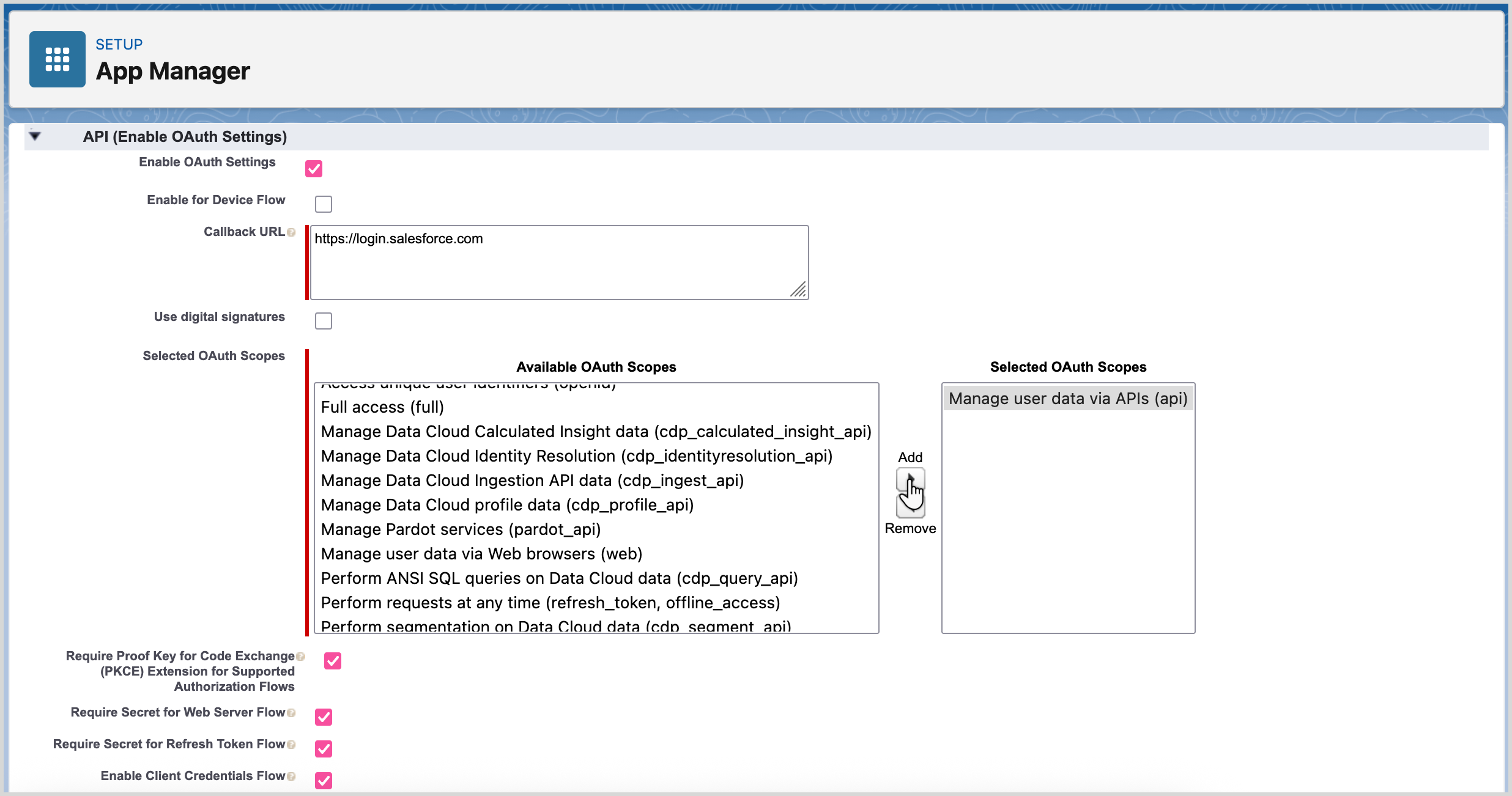
Select .
Select . An email is sent to you with a verification code.
Enter the verification code in Salesforce to verify your identity and select .
You can now see your Consumer Key and Consumer Secret. Take note of these as you need them to configure webhooks in Maxsight.
You can now connect the app.
Connect the app
To connect the app:
From the Setup Home tab, go to > > .
Open the dropdown menu next to the app name and select .
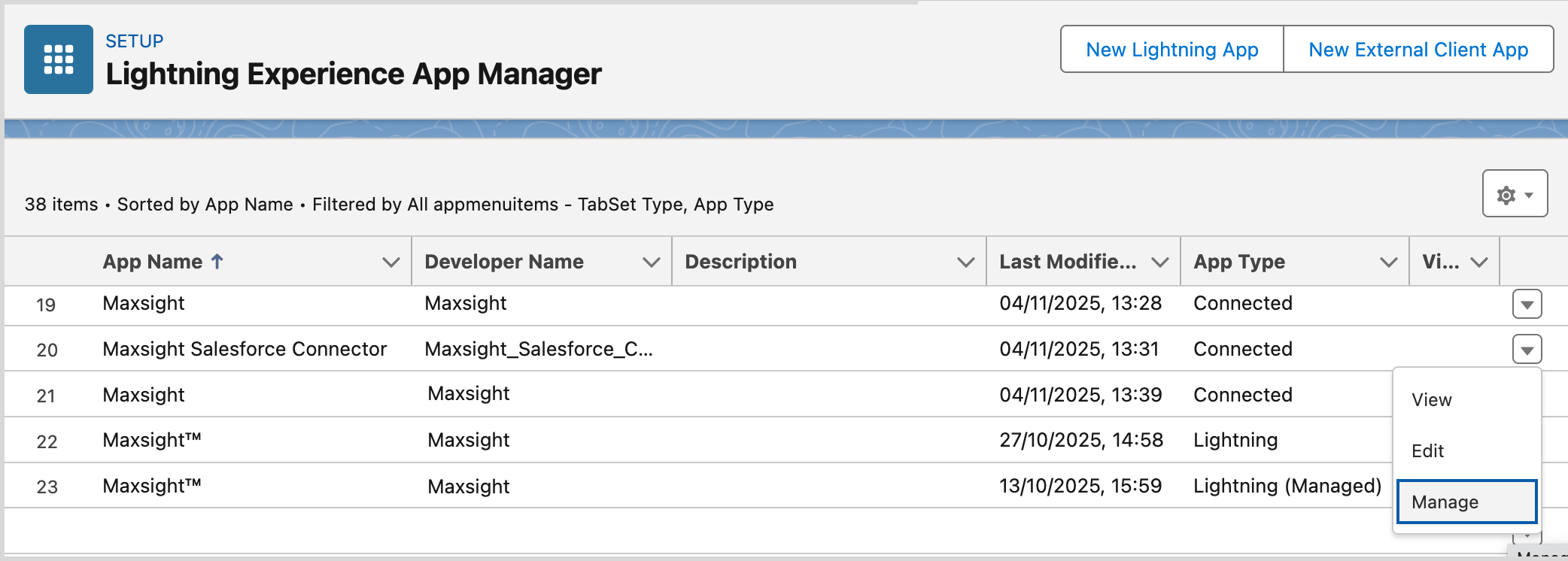
Select .
Navigate to and, in the Run as field, select the integration user you had previously created in Configure integration users in Salesforce.
Select .
You can now assign permissions to a user.
Assign permissions for the integration user
Assigning the correct permission sets gives users the access they need to fully take advantage of the Moody's Maxsight for Salesforce’s features, helping them work efficiently and ensuring everything stays secure and well-organized.
To assign Maxsight app permissions:
From the Home tab, go to > > .
Select the user you previously created in Create an integration user.
Assign the permission set:
Select .

Select the you want to edit.
Navigate to and select .
Select .
Select the that you created in the previous section.
Select your app from the list, select until the app appears in Enabled Connected Apps.
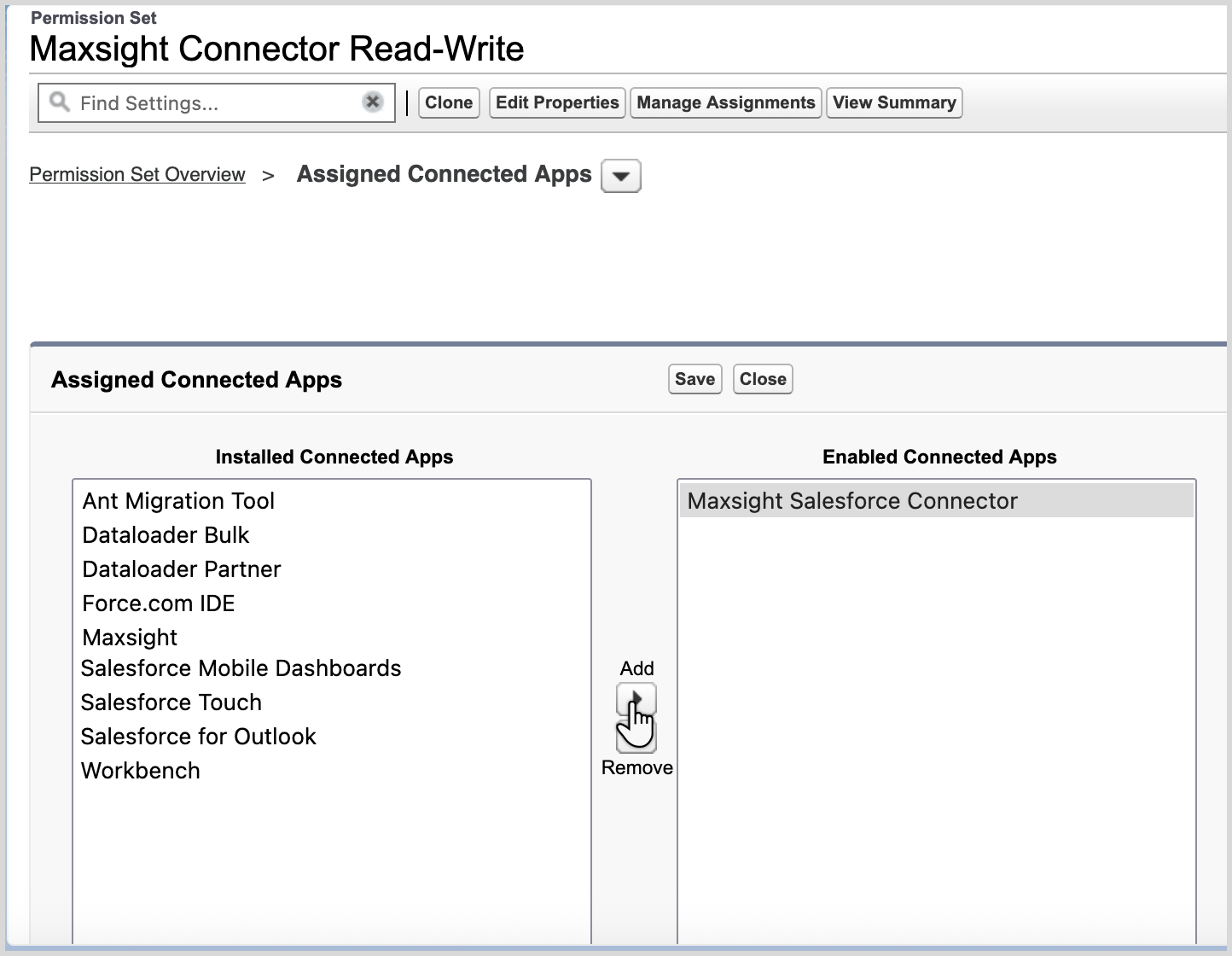
Select .
You are now able to configure webhooks in Maxsight for Moody's Maxsight for Salesforce.