Configure webhooks for the Moody's Maxsight for Salesforce
Learn how to configure webhooks for the Moody's Maxsight for Salesforce in Maxsight, including authentication, event selection, and endpoint setup.
Learn how to configure webhooks for the Moody's Maxsight for Salesforce in Maxsight, including authentication, event selection, and endpoint setup.
Prerequisites
You must have Salesforce Administrator access.
To configure webhooks for the Moody's Maxsight for Salesforce in Maxsight:
Log in to Maxsight and open the menu.
Select .
From the Webhook Config page, select both and .
From the Auth type dropdown menu, select .
From the Enabled events list, select:
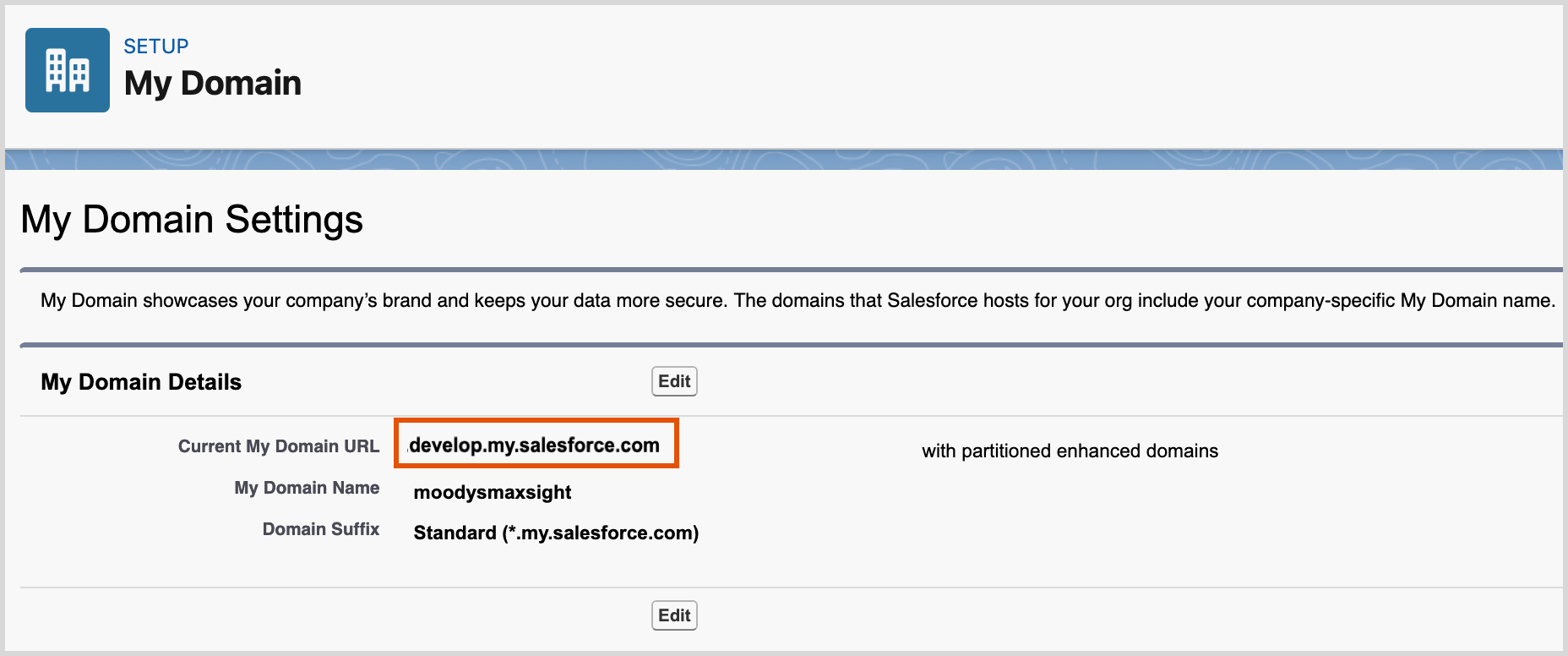
Open Salesforce and from the Home tab, go to > >.
Take note or copy the URL in the field. The URL in the following image is an example.
Navigate back the page in Maxsight and enter the following information:
Client ID: This the Consumer Key you created in Create a connected app.
Client Secret: This the Consumer Secret that you created in Create a connected app.
Token URL: https://your.domain.url/services/oauth2/token
Replace
your.domain.urlwith the URL that you copied from Current My Domain URL in the previous step.Endpoint: https://your.domain.url/services/apexrest/Moodys_MX/updateAssessment
Replace
your.domain.urlwith the URL that you copied from Current My Domain URL in the previous step.
Select .
Your webhook setup is complete.