Configure integration users in Salesforce
Learn how to create a Moody's Maxsight for Salesforce integration user and set up their profile.
Use the following instructions to set up your Moody's Maxsight for Salesforce integration users. After you've created your integration profile and user, you can create a connected app.
Prerequisites
You must have Salesforce Administrator access.
Create an integration profile
To create a profile in Salesforce:
From the Home tab, go to > > .
Search for or choose a profile. This should be a profile for which only the API Enabled and API Only User permissions are needed.
Select .
Enter a memorable name, such as My Maxsight, in the Profile Name field and select .
Navigate to and select .
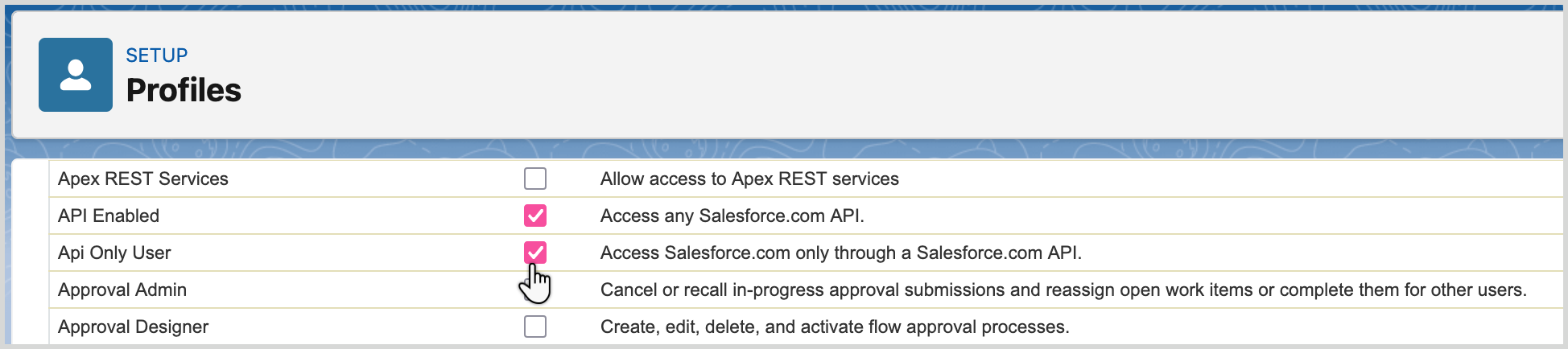
Select both and permissions.
Note
We recommend that you deselect all other checkboxes to ensure this profile has minimum access.
Once you've configured the settings as needed, select .
After configuring the settings for a user, follow the instructions in the next section to create the user.
Create an integration user
Prerequisites
You need to create the required profile before you can create the new user and assign them to that profile.
To create an integration user in Salesforce:
From the Home tab, go to > > .
Select .
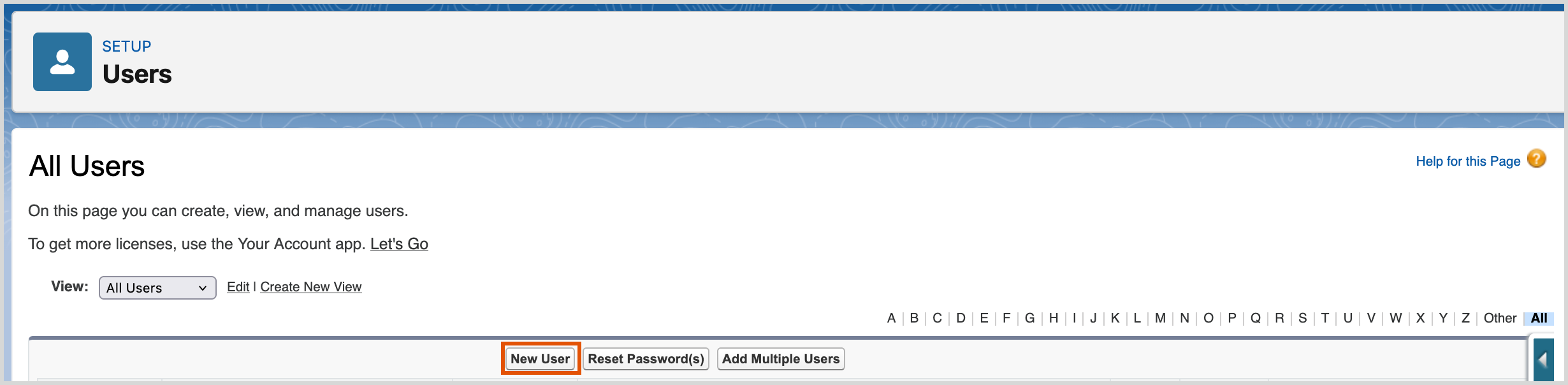
Fill in the form with the user's details, from the Profile dropdown menu, choose the for the user that you created in the previous section.
Select from the end of the form.
Now that you've created the new user, create a connected app and assign it to this user and their profile.