Map fields for assessments
Map required and optional fields for company and individual entities from Salesforce to run an assessment in Maxsight.
Map required and optional fields for company and individual entities from Salesforce to run an assessment in Maxsight.
Prerequisites
You must have Salesforce Administrator access.
Map Company Entity (Account) fields
To map account fields in Salesforce:
Open the Maxsight app from the App Launcher.
Go to the tab and select the tab.
Select .
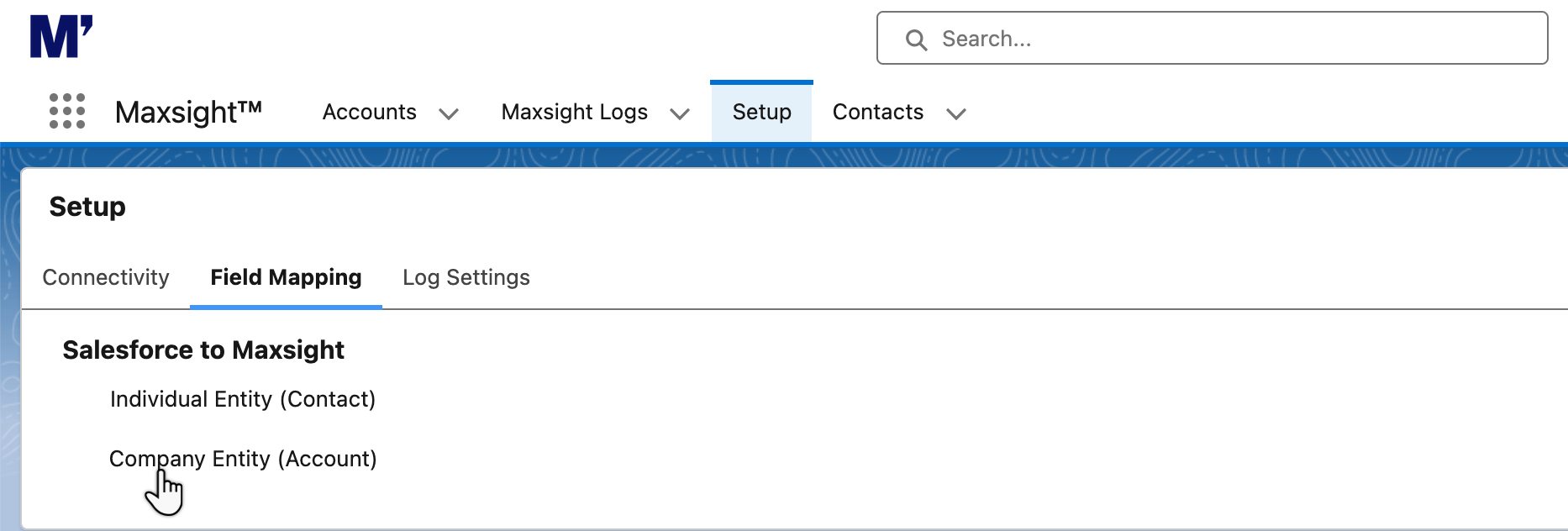
Go to the tab.
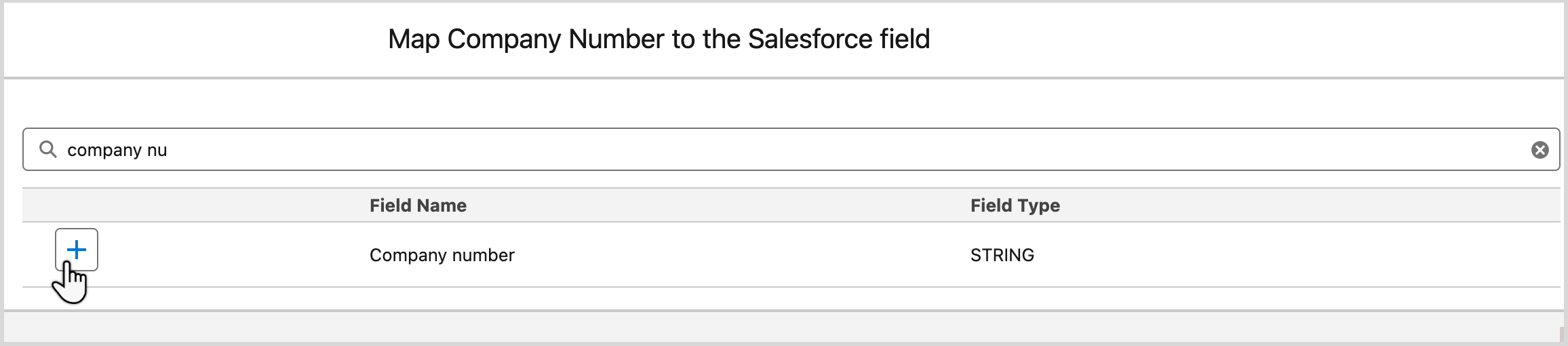
Select the button of the field you want to map. A new modal opens that shows the list of available fields.
Scroll through the list to find the required field or, in the Search field, enter the you want to map. The list of Field Names changes dynamically as you type.
Note
Company Name, Country Number, and Country of Incorporation are all required fields and must be mapped in order to save mappings.
Select the icon next to the field that you want to map. Continue to map fields.
After you have added all the fields that you want to map, select .
Note
Tax identification number (TIN) bundles must be mapped together. If only one field is mapped, an error appears.
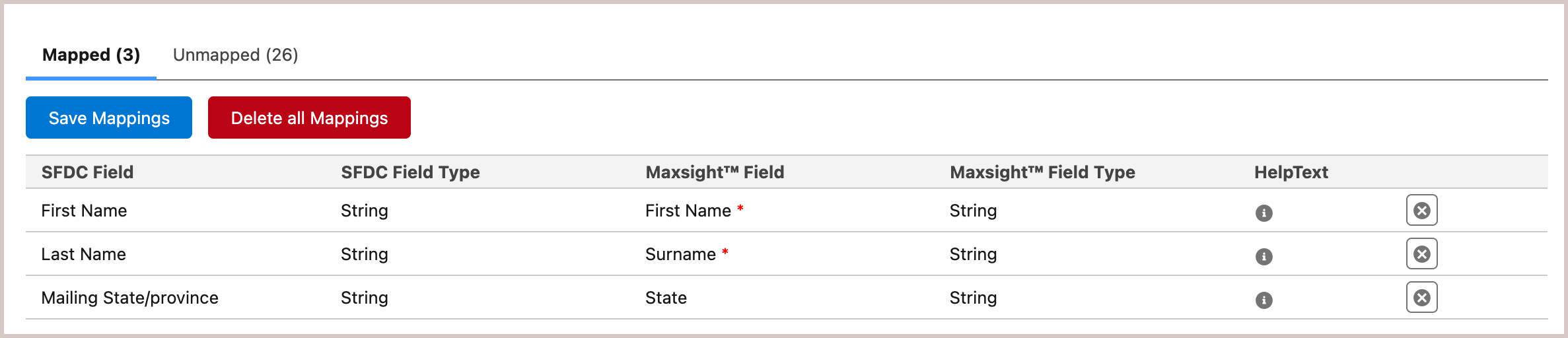
Open the Mapped tab and select Save Mappings.
Map Individual Entity (Contact) fields
To map contact fields in Salesforce:
Open the Maxsight app from the App Launcher.
Go to the tab and select the tab.
Select .
Go to the tab.
Select the button of the field you want to map. A new modal opens that shows the list of available fields.
Scroll through the list to find the required field or, in the Search field, enter the you want to map. The list of Field Names changes dynamically.
Note
Required fields vary by data provider. A Maxsight Implementation Engineer can advise on the recommended fields to map for your configuration.
Select the icon next to the field that you want to map. Continue to map fields.
After you have added all the fields that you want to map, select .
Note
ID bundles must be mapped together. A partial mapping triggers an error.
Open the Mapped tab and select Save Mappings.