Add and edit teams in Maxsight
Learn how to create and edit teams in the platform, add members and roles, and update team details to manage user access and assignments.
Teams group users so you can assign roles to them collectively. You can assign assessments or tasks to the team, so any member can access and manage the work.
Prerequisites
Your account must have Create access to the User management resource. Learn more about user management.
Add a team
To create a new team and add members:
Go to > .
Select . The Add new team page is displayed.
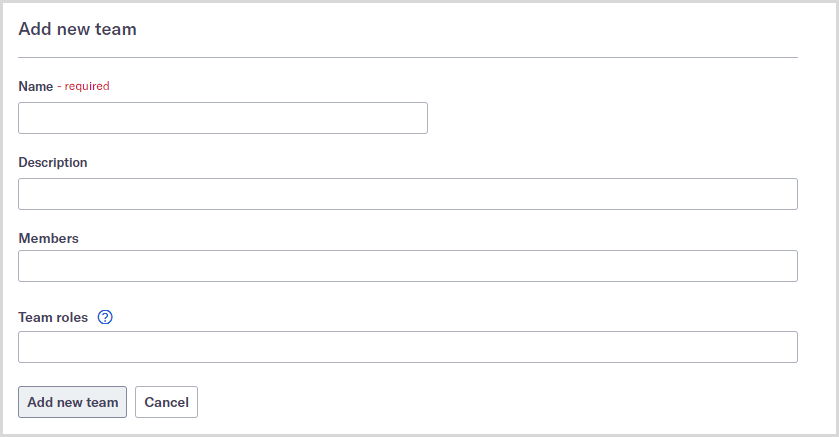
Enter the team’s name in the Name field.
Optionally, in the Description field, provide a short explanation of the team’s purpose.
Add the team members to the Members field. To add a member, enter the user’s name or email address into the field. You can add as many users as you like.
Optionally, add roles to the Team roles field. Team roles determine what the team members can see and do in the platform. To add a role, type the role name into the field. You can add as many roles as you like.
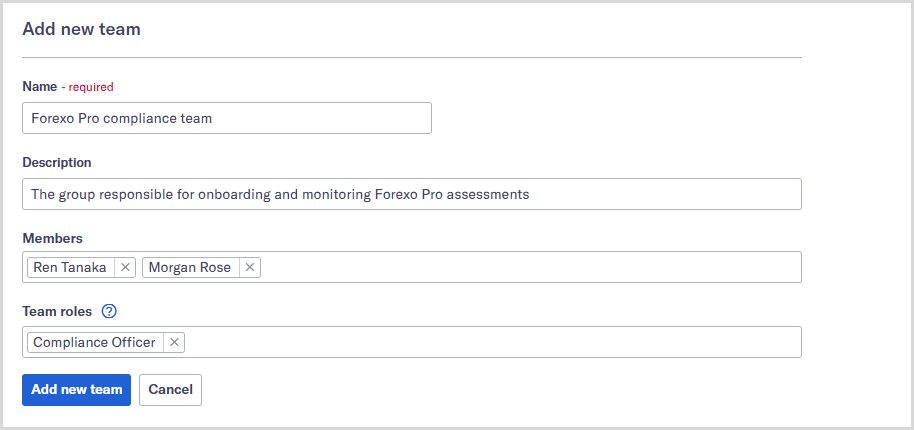
Select . The team is created.
Once the team's created, you can assign assessments to it. Team members can view assessments assigned to them using filtering.
Edit a team
To edit a team:
Go to > .
Select the team you’d like to edit.
To change the name, update the Name field.
To change the description, update the Description field.
To add a member, enter a user’s name or email address into the Members field. The team can have as many members as you’d like.
To remove a member, select the next to a member’s name.
To add a role, enter the role name in the Team roles field. The team can have as many roles as you'd like.
To remove a role, select the next to a role's name.
Select . The team is updated.
Members do not receive a notification when they’re removed from a team, so you may want to let them know they’re no longer part of the team.
Note
There is no way to deactivate teams.