Deactivate or reactivate a user
Learn how to deactivate platform users, so they no longer have access to your account, and how to restore access to deactivated users.
When you deactivate a user in the platform, they no longer have access to your account. However, you can reactivate a deactivated user to restore their access to your account.
Prerequisites
To deactivate and reactivate users, you must have Read and write access for the Manage users permission. Contact the administrator of your account if you don't have this permission but need to reactivate or deactivate users.
Deactivate a user
When you deactivate a user, they no longer have access to your account.
Any tasks or assessments assigned to the user are unassigned, and the user is removed from any teams. Before deactivating a user, you may want to reassign these items.
To find out if you get notifications about unassigned assessments, for example, when an unassigned assessment needs manual review, check your notification preferences.
To deactivate a user:
Go to > .
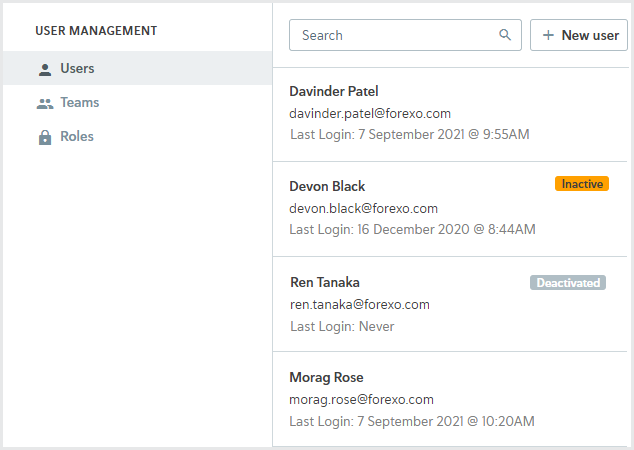
On the Users page, you can view the date users last signed in to the platform. The Inactive label helps you identify active users who haven't signed in in the past four weeks.
Select the user you’d like to deactivate.
Select Deactivate user. A confirmation dialog is displayed.
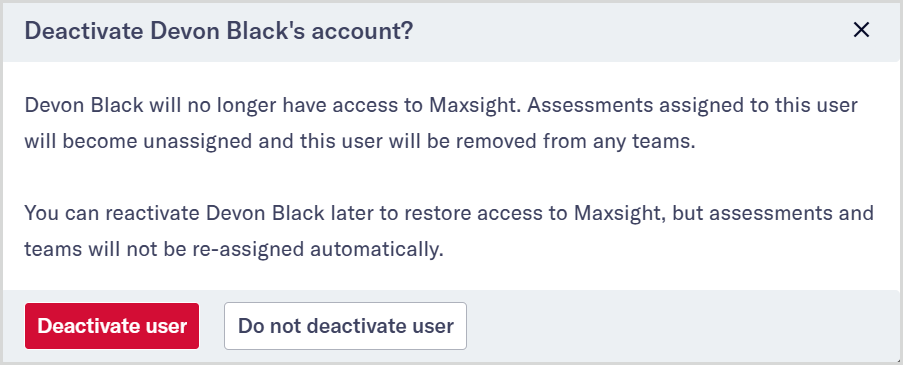
Select .
The user no longer has access to your account. The user is also removed from any teams, and assessments are unassigned.
Note
If you're using federated SSO, you should also deactivate the user with your identity provider.
Reactivate a user
Reactivating a user does not restore any of their previous assignments. Their tasks and assessments remain unassigned, and they are not automatically added to any teams.
To reactivate a user:
Go to > .
Select the user you’d like to reactivate.
Deactivated users are displayed last in the list of users.
Select . A confirmation dialog is displayed.
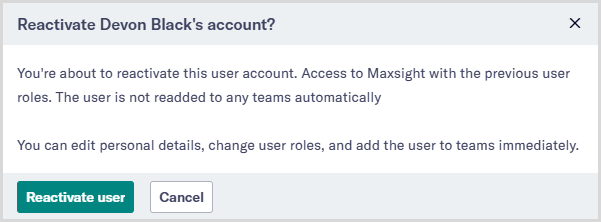
Select from the dialog.
The user’s access to your account is restored with the same user roles they had before.
Note
If you're using federated SSO, you should also reactivate the user with your identity provider.