Configure Moody’s Compliance Screening Agent in IBM watsonx Orchestrate
Learn how to subscribe to the Moody’s Compliance Screening Agent and configure it in IBM watsonx Orchestrate using OAuth connection, ADK, and MCP tools.
This guide explains how to subscribe to the Moody’s Compliance Screening Agent and configure it in IBM watsonx Orchestrate (wxO) when you have received your credentials. See the Known issues section if you run into problems during setup.
Subscribe to the Moody’s Compliance Screening Agent
The Moody’s Compliance Screening Agent is available under the Bring Your Own License (BYOL) model on the IBM platform.
To subscribe to the Moody’s Compliance Screening Agent and receive your ClientID and ClientSecret, contact the Moody's Sales team at the following email address: Sales_Alliances@moodys.com.
Configure the Moody’s Compliance Screening Agent in IBM watsonx Orchestrate
To configure Moody’s Compliance Screening Agent in the IBM Agentic platform, you need to install and configure IBM Agent Development Kit (ADK), create an OAUth connection to Moody's Identification Service (MIDS), import Moody's Model Context Protocol (MCP) tools using ADK, and create an IBM Agent consuming the Moody’s Compliance Screening Agent tools.
Install and configure IBM ADK
Follow the wxO ADK documentation on the official IBM Developer site to install and configure the IBM wxO ADK integration on your wxO instance.
Create an OAuth connection to Moody's OAuth server
To set up the connection to Moody's OAuth server using OAuth2 Authorization Code:
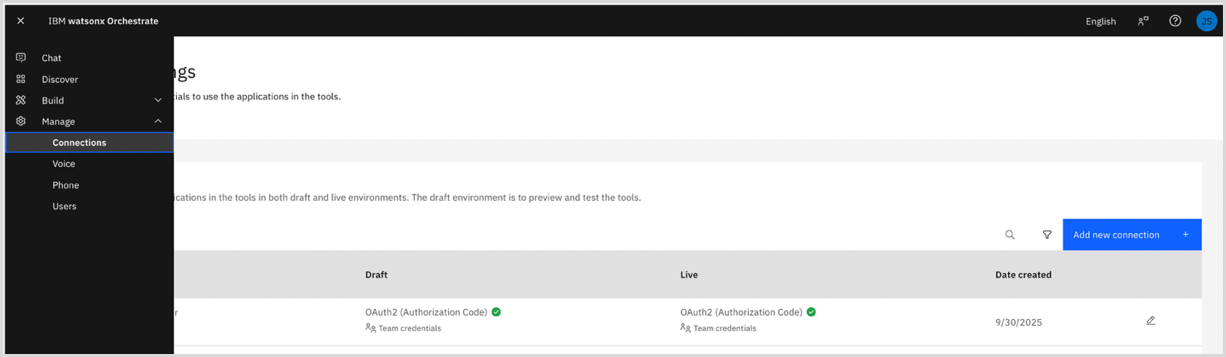
In the wxO UI, navigate to Manage > Connections and select .
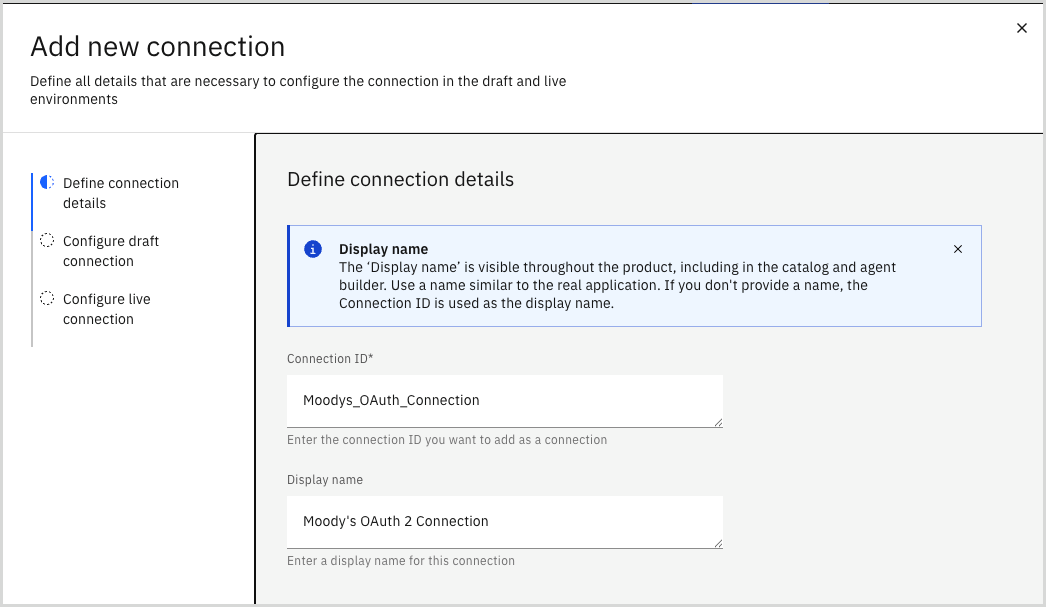
Enter "Moodys_OAuth_Connection" as the Connection ID and "Moody's OAuth 2 Connection" as the Display name and select .
Select as the Authentication type.
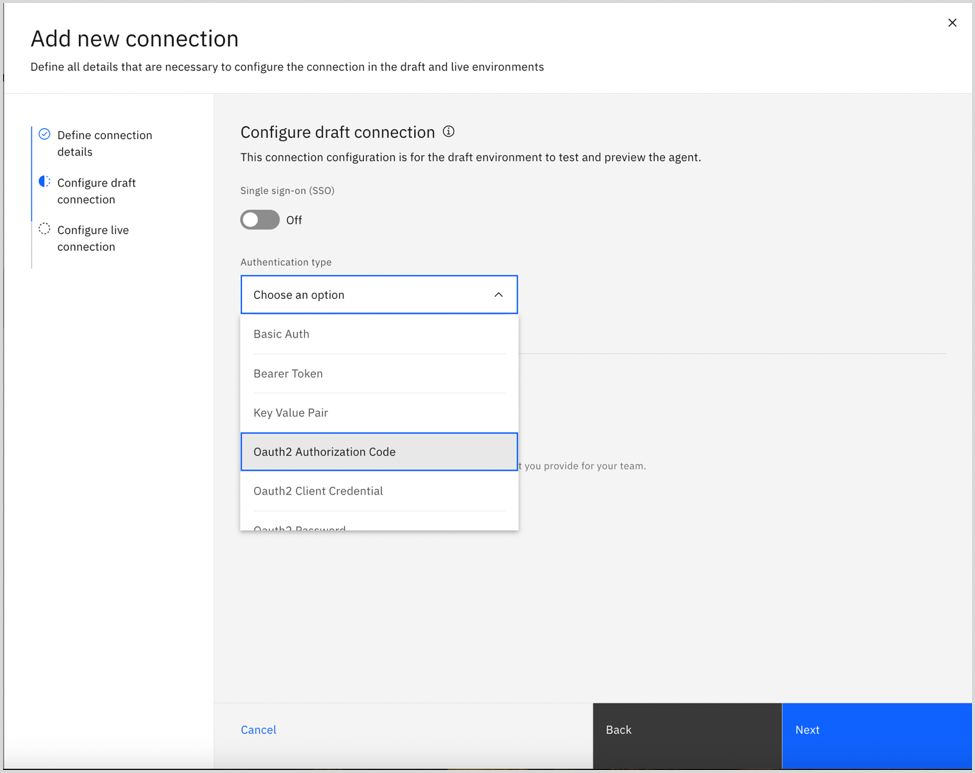
Use the following values to create the draft connection, which is used to import Moody’s Compliance Screening Agent tools, set up the agent builder, and test the draft connection to make sure it works:
Server URL: Leave blank
Token URL: Enter "https://login.moodys.com/oauth2/v1/token"
Scope: Enter "openid profile email tenants groups"
Authorization URL: Enter "https://login.moodys.com/oauth2/v1/authorize"
ClientID and Client Secret: Enter the ClientID and ClientSecret you received from the Moody's Sales team.
Credential type: Select .
Select . You are redirected to an authorization window and then to Moody's Identification Service where you can sign in using your Moody's SSO credentials.
A message appears in the wxO UI when you are successfully connected to the Moody's OAuth server.
Select to create the live connection, which is used for production.
Select to use the same values as the draft connection, and then select to test the live connection.
A message appears in the wxO UI when you are successfully connected to the Moody's OAuth server.
Select . Green check icons appear under Draft and Live on the Connections screen to indicate that the connection was successfully established.
Import Moody's MCP tools via ADK using the OAuth connection
To import Moody’s Compliance Screening Agent MCP tools using ADK, run the following command in a Unix shell:
orchestrate toolkits import --kind mcp --name moodys_mcp_tools --description "Moody’s Screening Agent MCP tools" --url "https://screening-ai-services.moodys.cloud/mcp" --transport "streamable_http" --tools "*" --app-id "Moodys_OAuth_Connection"
Ensure the app-id is identical to the value you entered for Connection ID when creating an OAuth connection to Moody's OAuth server.
See the official ADK documentation for more details on connection setup and toolkit import.
Create an IBM Agent to use Moody's MCP tools
To create an IBM Agent to consume the Moody’s Compliance Screening Agent MCP tools:
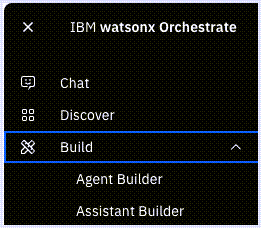
In the wxO UI, navigate to Build > Agent Builder.
In the Tools section, select .
Select and then choose .
Open the Select MCP server drop-down and select .
Activate the MCP tools you need for your agent and business operations and then select . The activated tools appear in your agent's toolset.
Finalize your agent setup and configurations to meet your specific requirements. See the official IBM watsonx Orchestrate documentation for detailed guidance.
Known issues
This section lists known issues you may encounter when completing this task:
Connection is lost and the button does not appear in the Chat
Normally, after the tokens have expired, the user receives a prompt to reconnect to Moody's Identity Server (MIDS). However, the button does not appear.
IBM Engineering acknowledge the issue and are actively working on a fix for this.
Note
In an expired session with Moody's tools, the user can receive wrong answers and the agent can hallucinate. One sign of this issue is that the response from the Moody’s Compliance Screening Agent is empty: []. If this happens, manually reconnect the agent using the following workaround.
IBM proposes the following workaround to reconnect to MIDS and get some fresh new tokens:
In the wxO UI, select the icon, then choose and open the tab.
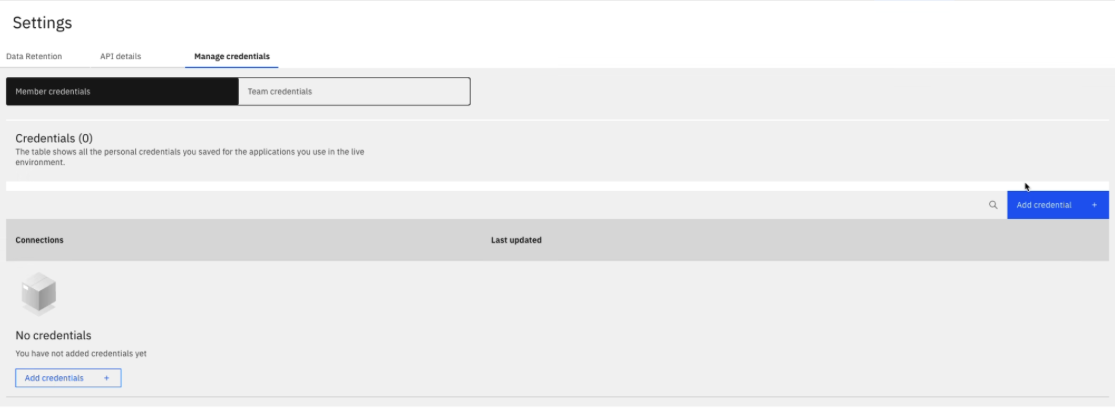
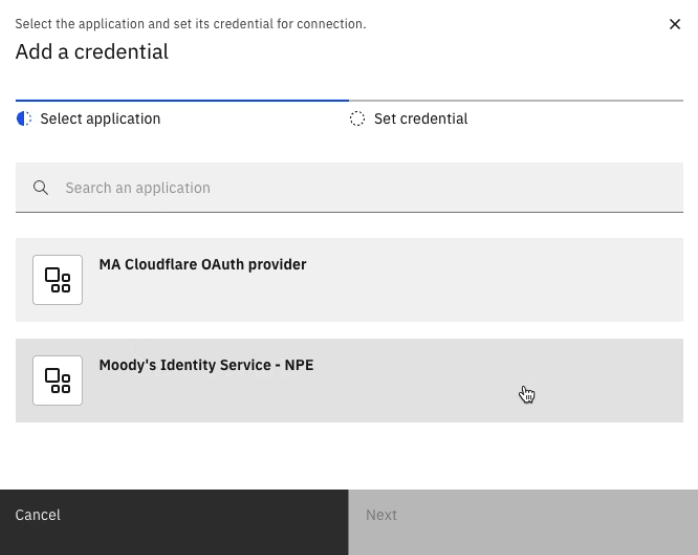
Select and choose the Moody's Identity Service application.
Select . The Credential type should be Member credential.
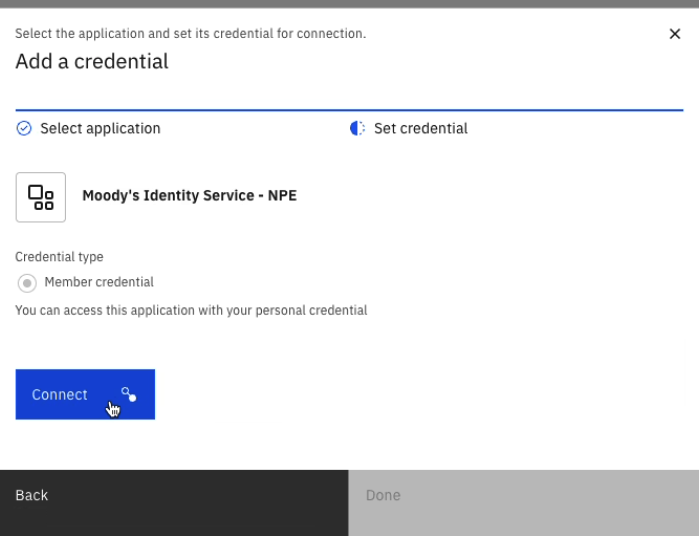
The system redirects you to Moody's Identity Services (MIDS/SSO) to complete sign in. Enter your Moody's credentials in MIDS/SSO sign in page and then IBM wxO shows a green Connected checkmark.
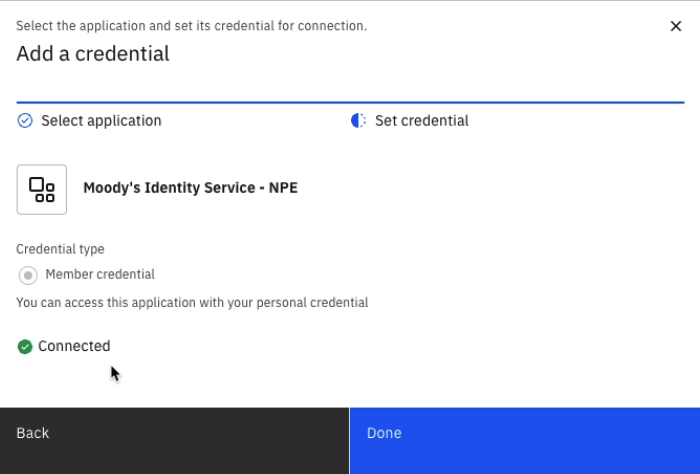
Select to return to IBM watsonx Orchestrate Chat.
The agent is now reconnected, and can be used for 14 hours.
When IBM fixes the problem, the user will see the button directly in the chat area.