Learn how to add, edit, and delete roles in Maxsight. Includes steps to create roles, assign permissions, update role details, and remove roles when no users are assigned.
Roles control what users can see and do on your Maxsight account.
Roles can be applied to individual users or to teams. When you change a team's roles, the update applies to team members the next time they sign in.
Each role includes a set of permissions. Permissions provide the user or team members with different levels of access to areas of Maxsight. Learn more about individual permissions.
Prerequisites
Read and write access for the Manage users permission.
Add a role
To add a new role:
Go to > .
Select . The Add new role page is displayed.
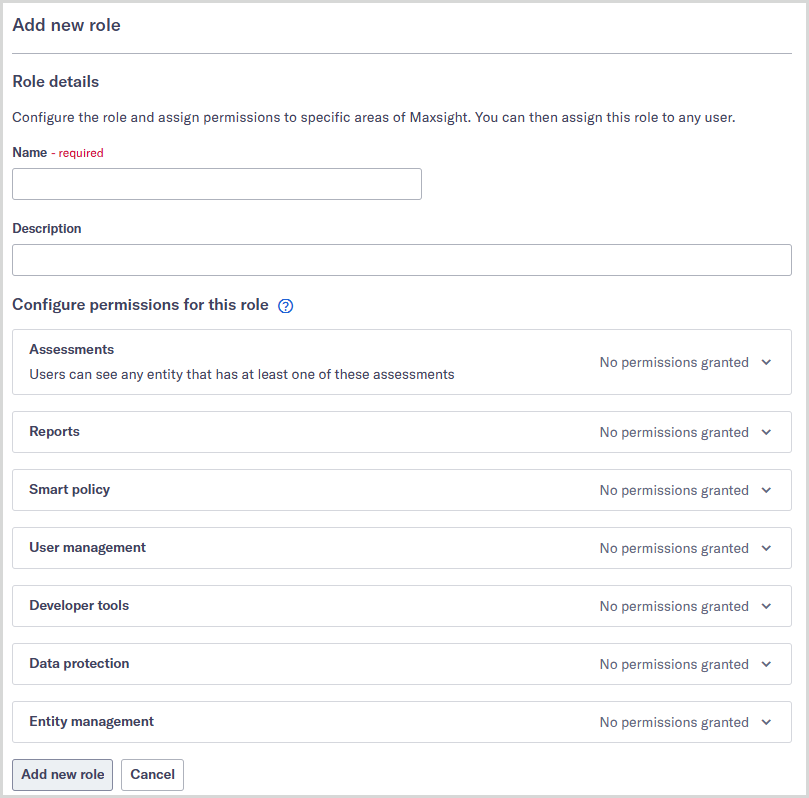
Write the role's name in the Name field.
To provide a short description of the role, write it in the Description field. If you leave this field blank, the description is displayed as No description provided.
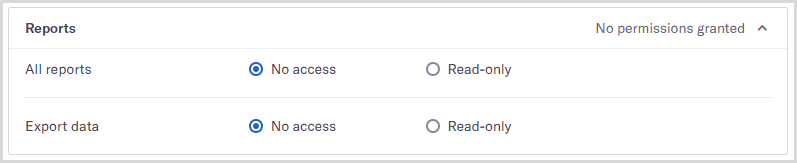
To add permissions to the role, select a permission to expand it, then select the type of access you’d like to grant, for example, Read-only or Read and write. By default, no permissions are granted. Learn what users can do with each permission.
Select . The role is displayed in the list of roles.
If you have Read and write access for the Manage users permission, you can assign the role to users and team members.
Edit a role
To edit a role:
Go to > .
Select the role you’d like to edit.
To change the name, update the Name field.
To change the description, update the Description field.
To change permissions, select a permission to expand it, then select the type of access you’d like to grant, for example, Read-only or Read and write. Learn what users can do with each permission.
Select . The role is updated. If you modified the permissions, users and team members see the changes immediately.
If a user or team member doesn’t see changes to their permissions, ask them to refresh their browser.
Delete a role
Roles can only be deleted if they're not assigned to any users.
To delete a role:
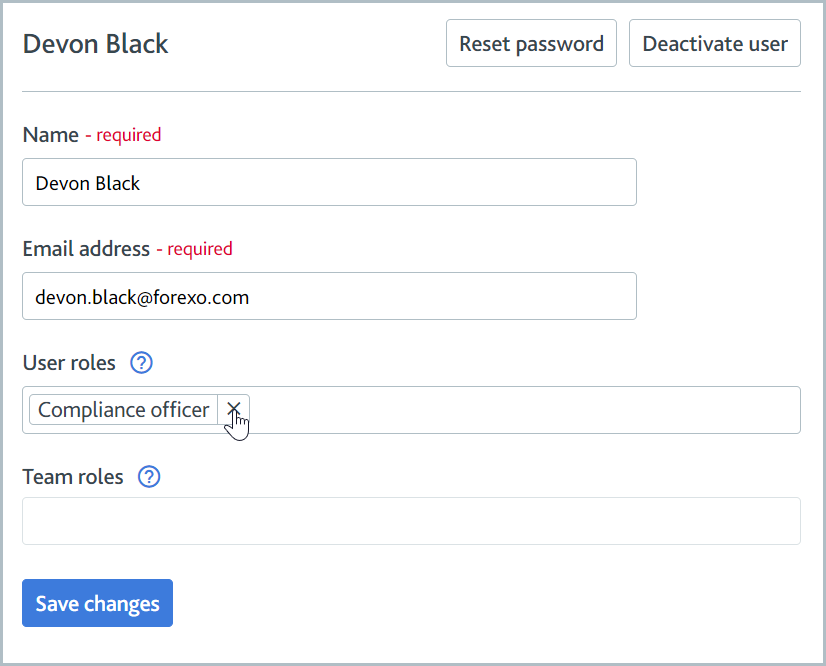
Go to > and remove the role from all users who have it assigned to them.
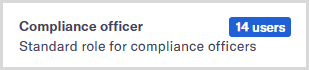
The number of users with the role assigned to them is displayed next to the role’s name in the section. This must be displayed as 0 users before the role can be deleted.
Go to > and select the role you’d like to delete.
Select . A confirmation dialog is displayed.
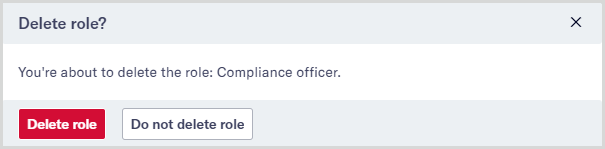
Select . The role is removed from the list of roles and can no longer be assigned to users.
If the button is inactive, one or more users or teams have the role assigned to them. Edit the users and teams to remove the role, then repeat the steps to delete the role.