Connect Salesforce to Maxsight
Learn how to connect to Maxsight by entering your API key and endpoint URL in the Salesforce Connectivity setup.
Learn how to connect to Maxsight by entering your API key and endpoint URL in the Salesforce Connectivity setup.
Prerequisites
You will need both your Maxsight API key and the endpoint URL.
You are logged in to Salesforce.
You must have Salesforce Administrator access.
The Endpoint URL must be allow listed in Salesforce Remote Site Settings.
To establish connectivity from Salesforce:
Open the Maxsight app from the App Launcher.
Go to > .
Enter the Endpoint URL and API Key. Learn more about how to get your API key in Maxsight.
Note
For your endpoint URL, use
api.us.maxsight.comfor the US region,api.eu.maxsight.comfor the EU region, orapi.ae.maxsight.comfor the UAE region.Select .
A Successfully connected message appears.
Reset the API key
After you have connected Maxsight to Salesforce, you may need to update your API credentials in Salesforce. Note that the existing key remains active until the new key has been added.
To reset your API key:
Open the Maxsight app from the App Launcher.
Go to > .
Select .
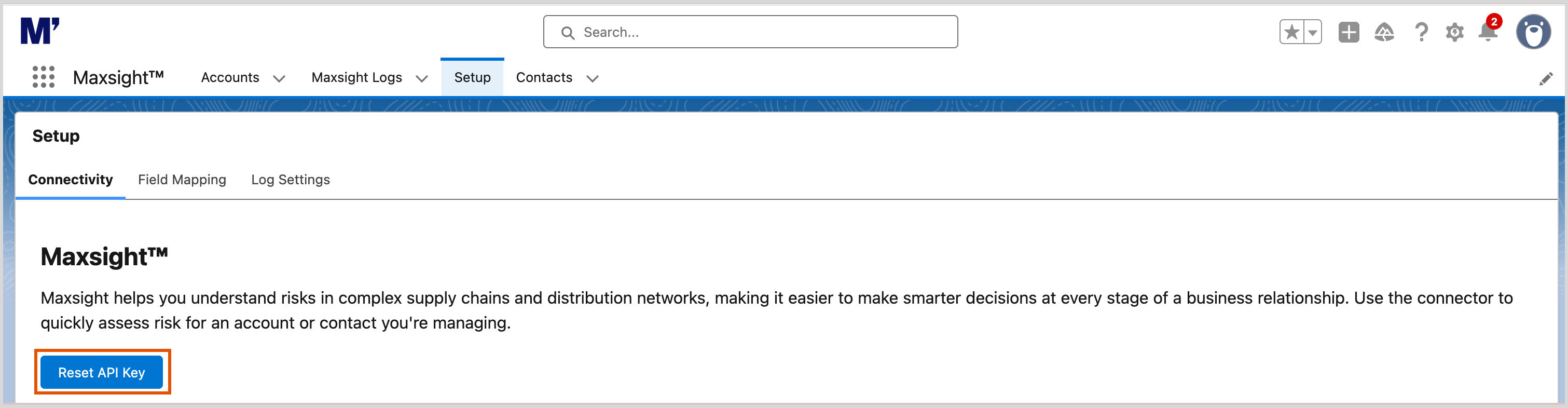
Select from the modal.
A Reset successful message appears.
Add your new credentials.